Supply chain (SCO) reports
The supply chain object (SCO) reports in the Pixalate Analytics dashboard break your traffic down by supply path, so you can compare the ways you buy or sell the same inventory and keep the best chains. There are three reports, under SPO Reports: Mobile SCO, CTV SCO and Domain SCO.
The SCO reports are available to all Analytics dashboard subscribers as a beta program.
For what validation and verification mean, see SCO validation and verification. To check SCOs from code, use the SCO API.
Read the default view
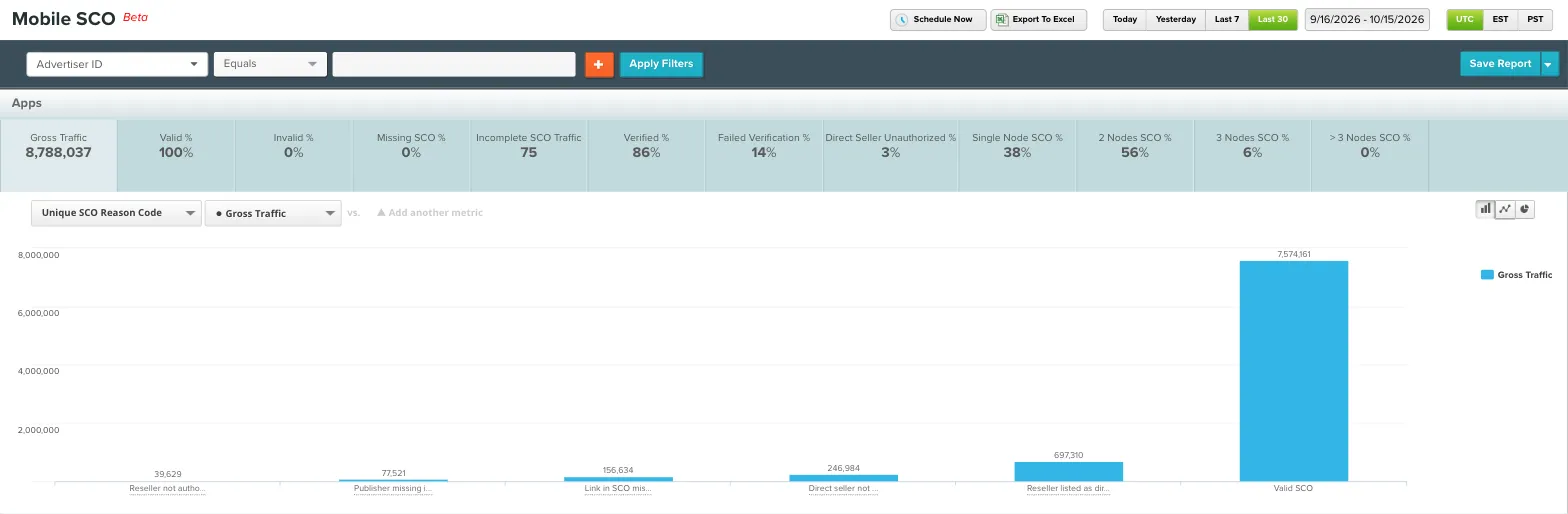
The SCO reports (Mobile SCO, CTV SCO and Domain SCO) are under SPO Reports in the Analytics dashboard’s Reports menu. They show supply chain performance in aggregate, with the chains that pass and fail validation and verification broken out.
The default columns include:
- App or site
- The supply chain object that was passed
- Reason and error codes
- Chain length
The header lets you narrow the scope, for example by valid or incomplete chain %, unauthorized direct sellers, or a specific number of nodes. From there, compare SCO data with other metrics such as gross ads, IVT % and viewability.
Start with the chains that miss your criteria, such as IVT over 10% or no complete flag. Then consolidate paths and remove redundant ones based on validation and verification results, performance or spend.
All the usual report tools work here: date ranges, filters, Add Column, save, schedule and export. See Run and customize reports.
Break down by dimension
Compare chains for one app or domain
Filter to a single app or domain and compare its chains:
- Buying efficiency: if your company has rules on chain length or completeness, find the broken chains and the ones longer than expected, turn those paths off, and move spend elsewhere.
- Cost savings: add IVT rate to cut wasted spend and clawbacks. Some partnerships set an IVT % threshold above which the seller pays. Find the chains with inflated IVT and block that node, or use pre-bid measures for that partnership, so you can keep trading the inventory without blocking the publisher. Add ad spend to estimate what you’d save by dropping a chain.
Filter by reason and error codes
Reason and error codes tell you what’s broken in an SCO or which data is missing or passed incorrectly.
- Valid SCO means a complete chain where every node passed, with the correct seller and ad system ID and the correct seller type.
- Codes are split into validation (is the SCO well-formed?) and verification (do the sellers match ads.txt, app-ads.txt and sellers.json?). Each calls for a different fix.
- More than one code can appear on an SCO if it has several problems.
- In the dashboard, validation errors map to a single label: SCO deserialization failed.
For every code, what it means and how to fix it, see SCO error and reason codes.
How often Pixalate re-crawls
Pixalate verifies SCOs against crawled ads.txt, app-ads.txt and sellers.json files:
When one of these IVT types is flagged, Pixalate retries crawling the relevant file the next day, so an updated file is picked up quickly:
For these IVT types, see Reported IVT types and the IVT Taxonomy.
What you can do with the reports
- Check that the SCOs being passed match what you expect from your buying paths.
- Find sellers and partners that aren’t authorized (as a direct seller or as a reseller), then block them or work with them and the publisher to fix ads.txt.
- Reduce clawbacks by cutting specific paths instead of blocking an inventory source entirely.
- Find weak links in chains and work with those sellers to fix their sellers.json files or SCOs.
- Reduce IVT, since SCO verification failures correlate with IVT.
To block problem supply paths pre-bid, see the SPO data feeds.
Related
Questions? Contact support@pixalate.com.