Check many apps or domains at once
You can look up a whole list of apps or domains in the Media Ratings Terminal (MRT) at once. Upload a CSV, and the MRT returns a report with a row of data for each property it finds. You can then filter that report like Discovery and download the results.
Video (1.5 min): upload a list of apps and read the report.
Before you start
- One supply type per file. The MRT processes mobile apps, CTV apps and domains separately. Don’t mix them in one file.
- Size. Pixalate recommends no more than 10,000 rows per upload for a faster response. Your account also has an upload limit; see Troubleshooting.
- Quota. Each item you submit, and each result returned for it, counts toward your quota. See Quota and usage.
Step 1: Prepare the CSV
List your apps or domains
In a spreadsheet app (such as Excel, Google Sheets or LibreOffice Calc), put one app ID or domain per row in the first column. Use one column only, with no header row. If you start from an existing file, delete every other column and any headings.
A valid mobile app file looks like this:
Step 2: Upload the file
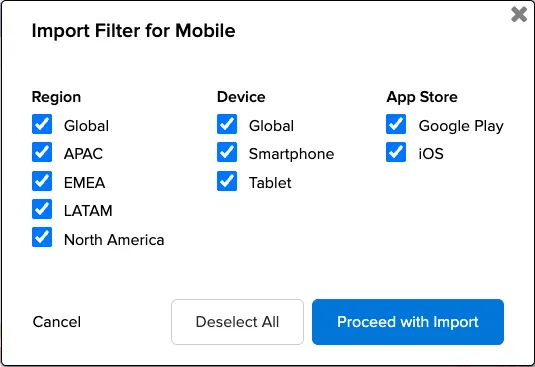
Open Discovery in the right workspace
Sign in at ratings.pixalate.com, select Discovery, and choose the workspace that matches your file: Connected TV, Mobile or Domains. The app workspaces can’t read domains, and the Domains workspace can’t read app IDs.
You can also start an upload from the upload icon at the right of the search bar.
Depending on the size of the list, the report takes about 3 to 30 minutes. You can stay on the page or leave it. Save the report URL to come back to it: it stays valid for 7 days. Reports you’ve uploaded are also listed under Imported in the MRT.
Step 3: Review and refine the results
When the report is ready, it opens as a Discovery-style view of your list.
- Items with no data are counted at the top right of the report (for example, “1 app not found”), with a Download link for the list of them.
- The same app or domain appears on several rows. This is expected: the report has a row for each device type and region, plus one row for all data. To see one row per property, set the device to All Devices and the region to GLOBAL. This also gives the most complete view of risk. See Set device and region.
- Filter the list with the same filters as Discovery, for example by risk, IVT %, brand safety, ads.txt or viewability, to find properties to remove or keep. See Filter the results.
Step 4: Download the results
Select Download as CSV, choose the fields you want in the file (or Select all), choose Filtered to export only the rows that match your filters or Unfiltered for the whole list, and select Download. You get a CSV you can send to partners or load into your own systems. For the columns available, see Export the results.
Troubleshooting
Maximum limit error
If your list has more rows than your account’s upload limit, the MRT shows an error with the limit. Reduce the number of rows to that limit or below and upload again, or split the list into several files. To ask about your limit, contact support@pixalate.com.
No results found
- Check the file encoding. Open the CSV in a code editor (such as Visual Studio Code, BBEdit or Sublime Text) rather than a word processor or rich-text editor, which can change characters such as commas. Re-save it as CSV UTF-8 if needed.
- Remove headings and extra columns. The importer expects a single column of IDs or domains with no header. Anything else can return empty results.
- Check the workspace. Make sure you uploaded from the workspace (Connected TV, Mobile or Domains) that matches the values in the file.
Several rows for the same app or domain
This is expected. Set the device to All Devices and the region to GLOBAL to see one row per property.
Related
- Discovery: filters, device and region settings, and export columns.
- Build exclusion and inclusion lists: turn your results into a block or target list.
- Enrichment API: look up lists from code with batch requests.
Questions? Email support@pixalate.com.