Sign in and manage your account
One Pixalate account signs you in to both Pixalate Analytics and the Media Ratings Terminal (MRT). The same username and password work for each.
API keys are separate from your sign-in. See Authentication and API keys.
Sign in
Open the product
Go to dashboard.pixalate.com for Analytics or ratings.pixalate.com for the MRT. If you aren’t signed in, you’re taken to the Pixalate account sign-in page.
Sign in
Enter your username and password. If your Pixalate account is linked to a Google or LinkedIn account, you can sign in with that instead.
Open your product
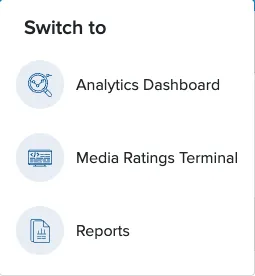
You’re returned to the product you opened. If you signed in at account.pixalate.com, you see the products your account can use. Select Analytics dashboard or the MRT to continue.
Get an account
How you get credentials depends on your product.
- Analytics. When your integration has passed Pixalate’s quality assurance (QA) checks, the Pixalate Customer Success team emails your sign-in credentials. See Pixalate Analytics for the integration steps.
- MRT Enterprise. You receive an email invitation. Follow it to finish registering: you set your password and, in some cases, give details about your company and your role.
- Free MRT account. Anyone can create a free account at account.pixalate.com. A free account shows a limited set of data points, and some sections of the MRT aren’t available.
Each user has their own sign-in. To add a user to your organization’s account, contact your Pixalate account manager.
Change or reset your password
Reset a forgotten password
On the sign-in page, use the forgotten-password option to request a reset.
Change your password in Analytics
Change your password in the MRT
Because the account is shared, a new password applies to both Analytics and the MRT.
Can’t sign in, or need to change access?
If you can’t sign in with the credentials you were given, or you want to change or disable a user’s credentials, contact your Pixalate account manager or support@pixalate.com. See Get support.